How to add your first customer
Getting a customer into PoolBeacon takes about a minute, and only a name is required to start. This guide walks the full path: create the customer, add their pool, and schedule the first visit.
The whole path in three parts: customer, then pool, then visit.
Step by step
Add the customer, the pool, and the first visit
- 1
Open the New customer form
From the top navigation, go to Customers, then click New customer. This is where every customer record starts. A customer is the person or company you bill; the pool itself comes next.
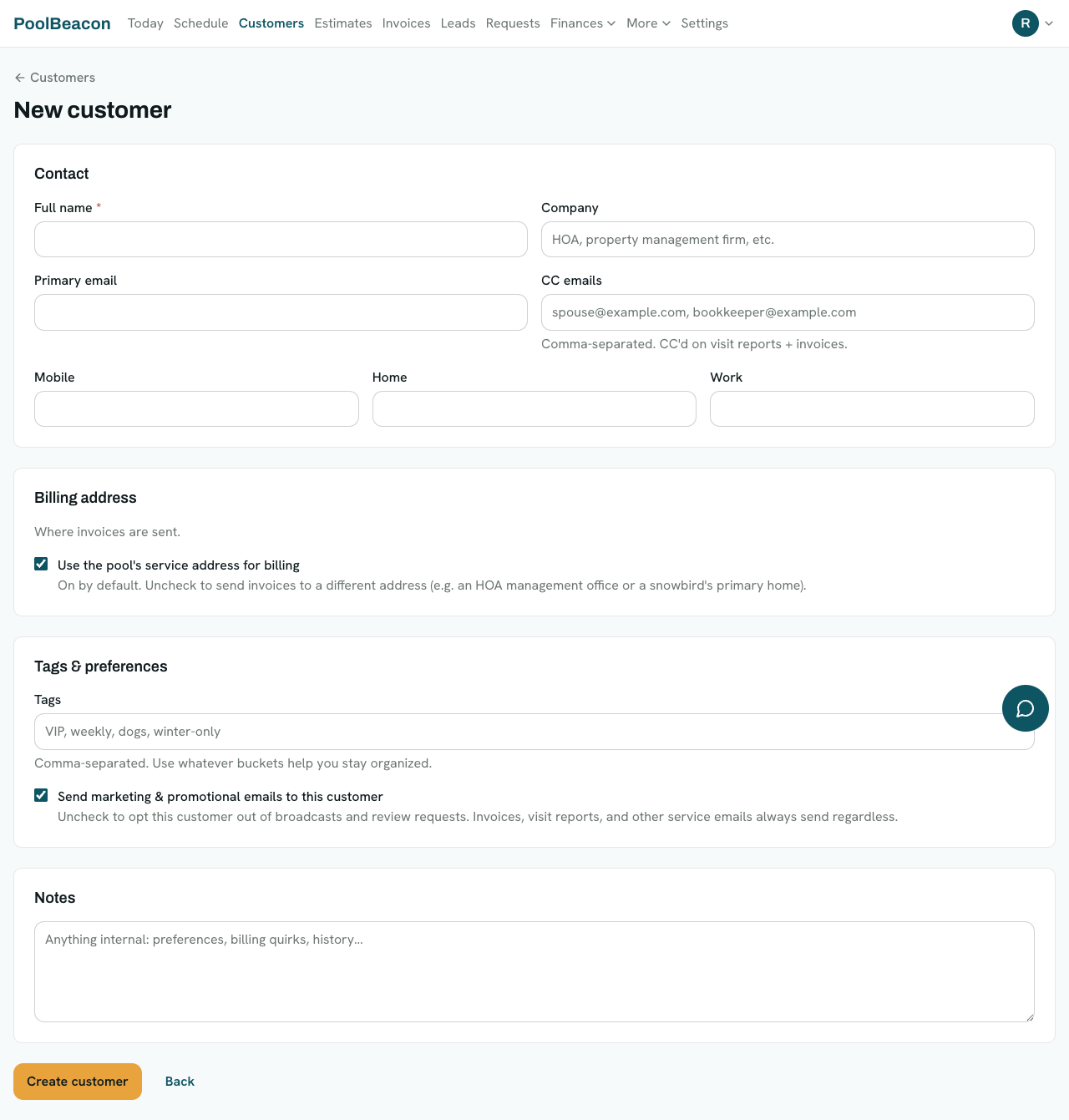
The New customer form. Only Full name is required; everything else is optional. - 2
Enter the name (the only required field)
Type the customer's Full name. That is the single required field. You can save with nothing else filled in and come back to the rest later, which is handy when you are standing in a driveway and just want the record created.
- 3
Add contact and billing details if you have them
Add a primary email if you want the customer to get visit reports, invoices, and their own portal link (no email is fine, those emails just will not send). CC emails loop in a spouse or bookkeeper. The billing address defaults to the pool's service address, so you only change it for an HOA office or a snowbird's primary home.
- 4
Save the customer
Click Create customer. You land on the customer page, where a Getting started banner walks you through the next steps and a Pools section is ready for you to add the pool.
- 5
Add the pool
On the customer page, click Add pool. The pool holds the service address (we geocode it onto your route map), the pool specs, and the service schedule. A customer can have more than one pool. This is the step that puts the stop on your route.
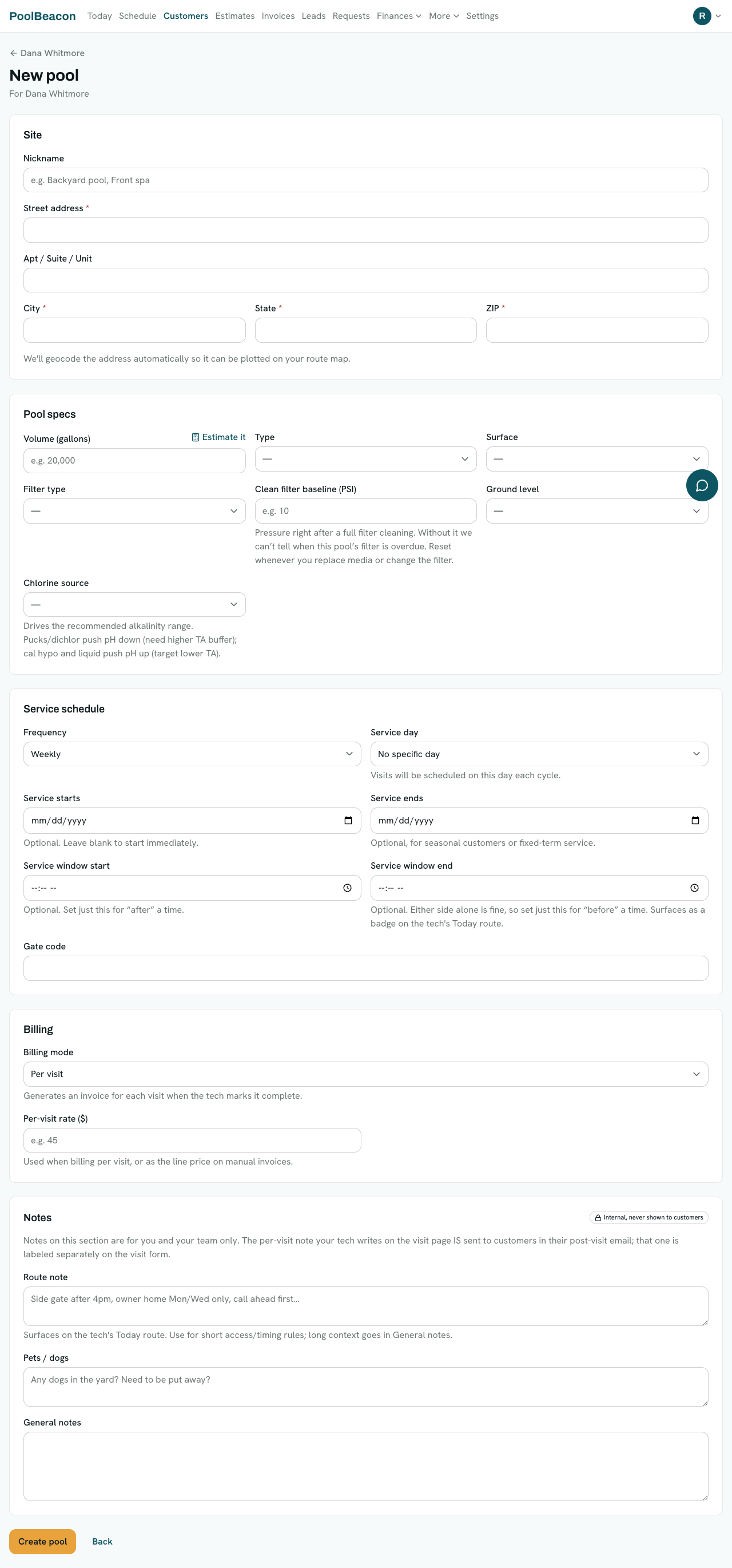
The New pool form. Street address, city, and state are required; specs and schedule are optional and editable anytime. - 6
Choose how the pool is billed (optional)
In the pool's Billing section, pick a billing mode. It defaults to "Per visit," which creates an invoice each time a tech marks a visit complete. "Recurring plan (flat rate)" bills one flat amount per period no matter how many visits, and "Manual" leaves invoicing entirely to you. You can change this anytime, so it never blocks getting started.
- 7
Schedule the first visit
Open the pool from the customer page, then use Schedule visit and pick a date. Once the visit exists, it shows up on your schedule and on the tech's Today route. That completes the setup: customer, pool, visit.
Good to know
A few things that save you time
The only order that matters is customer, then pool, then visit
A pool is always created under a customer, and a visit is always created on a pool. Everything else (email, billing rate, tags, agreements) is optional and can be added whenever you like.
You can service first and sort out the rest later
PoolBeacon does not force you to set up billing or collect a signature before you service a pool. Agreements are soft: the customer page shows "Not on file" and visits carry a gentle warning, but nothing stops you from scheduling and completing the work.
Want to practice first?
From your dashboard you can add a sample customer to click through the whole flow with throwaway data, then remove it in one tap. It is the low-stakes way to learn the screens before you enter a real route.
Questions about adding customers
- What is the minimum I need to add a customer?
- Just a name. Full name is the only required field on the customer form. You can fill in email, phone, address, and billing later.
- Do I add the pool or the customer first?
- The customer first. A pool is always created under a customer, because the customer is who you bill and communicate with. One customer can have several pools.
- Do I have to set up billing before I can service a pool?
- No. Billing defaults to per visit and can be changed anytime, and nothing about billing blocks scheduling or completing a visit. Set it when you are ready.
- Do I need a signed agreement before the first visit?
- No. Service agreements in PoolBeacon are optional. If you have configured agreement text, the customer page shows whether one is on file and visits show a soft warning, but you can still schedule and complete the visit.
- I already have a customer list. Do I have to type them all in?
- No. You can import your customers and pools from a spreadsheet or another app instead of entering them one by one. Adding one by hand, as in this guide, is best for your first customer or a walk-up.
Try it on your own route
Every feature is on every plan, starting at $19.99/mo. Start the 3-month free trial and add your first customer in about a minute.