How to import your customers
Bring your whole book over from another app or a spreadsheet. You map your columns, see a full preview before anything saves, and can undo it if something looks off.
Three steps, nothing saved until you say so:
Step by step
Export, map, preview, import
- 1
Export your list
Get a CSV out of your old app. PoolBeacon auto-recognizes exports from Skimmer, Jobber, Housecall Pro, and Pooltrackr, and a plain spreadsheet works too (save it as CSV first). Use one row per pool, with the customer repeated on each of their pools' rows. Not sure how to export, or ended up with a messy file? Email it to hello@poolbeacon.com and the team will load it for you.
- 2
Open Import customers and pick a mode
Go to Settings, Import customers. Choose "Backup / my own list" if you are restoring a backup or loading a list you made yourself (customers come in active and ready). Choose "Switching from another app" if you are moving off a competitor, which brings customers in dormant so billing does not fire until you cut each one over. Then drop your file in: a single CSV, several CSVs, or a ZIP.
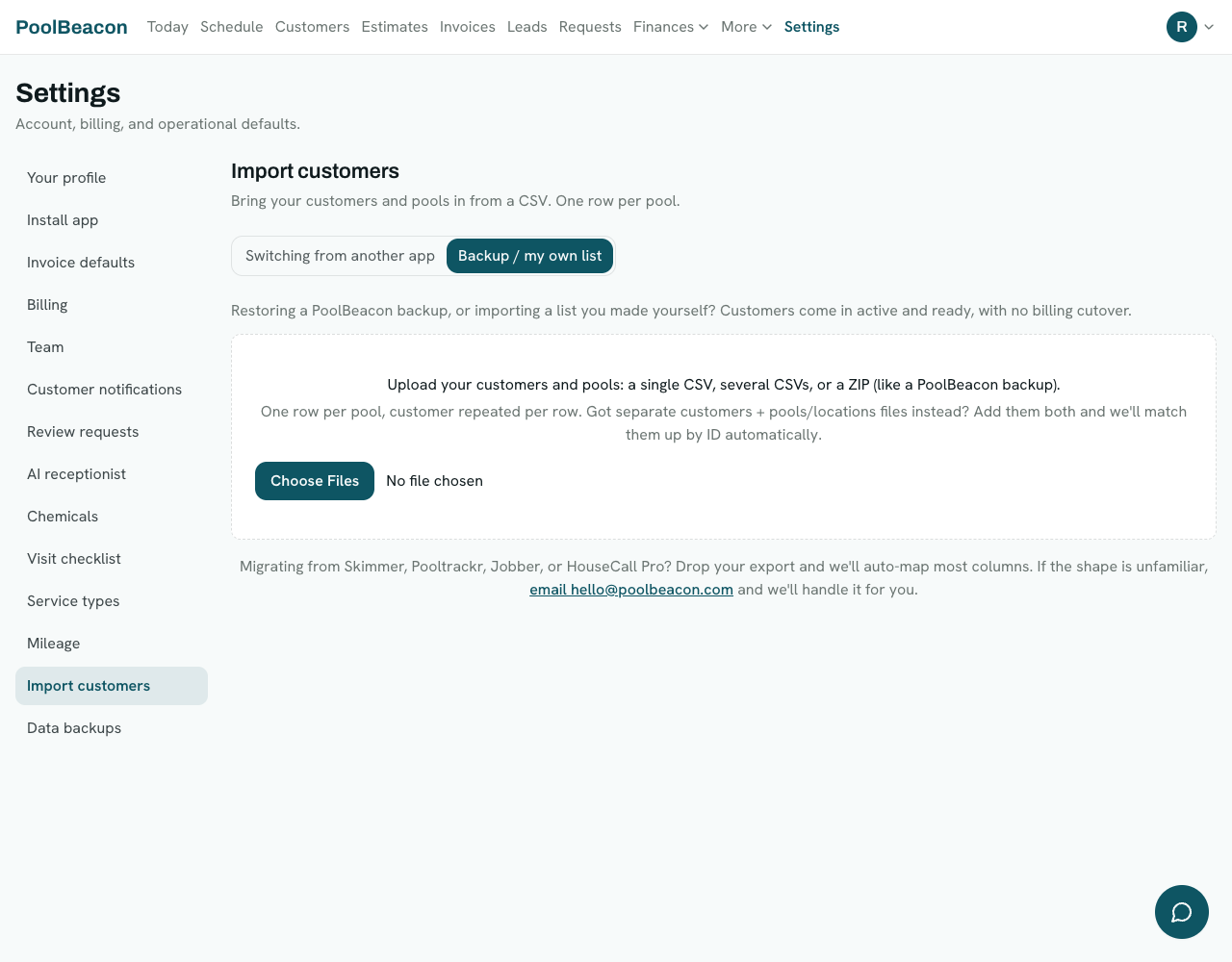
Pick a mode, then drop your CSV. It auto-maps most Skimmer, Jobber, Housecall Pro, and Pooltrackr exports. - 3
Match your columns
PoolBeacon takes a first guess at which of your columns maps to each field, so double-check each one. Five fields are required: the customer name, and the pool's street address, city, state, and ZIP. Everything else (emails, phones, pool specs, service frequency, rate, gate code, notes) is optional. Set any field you do not want to import to Skip. If your file splits the name into two columns, which most exports do, map the first-name column to Customer name and the last-name column to Customer last name, and they are joined back together.
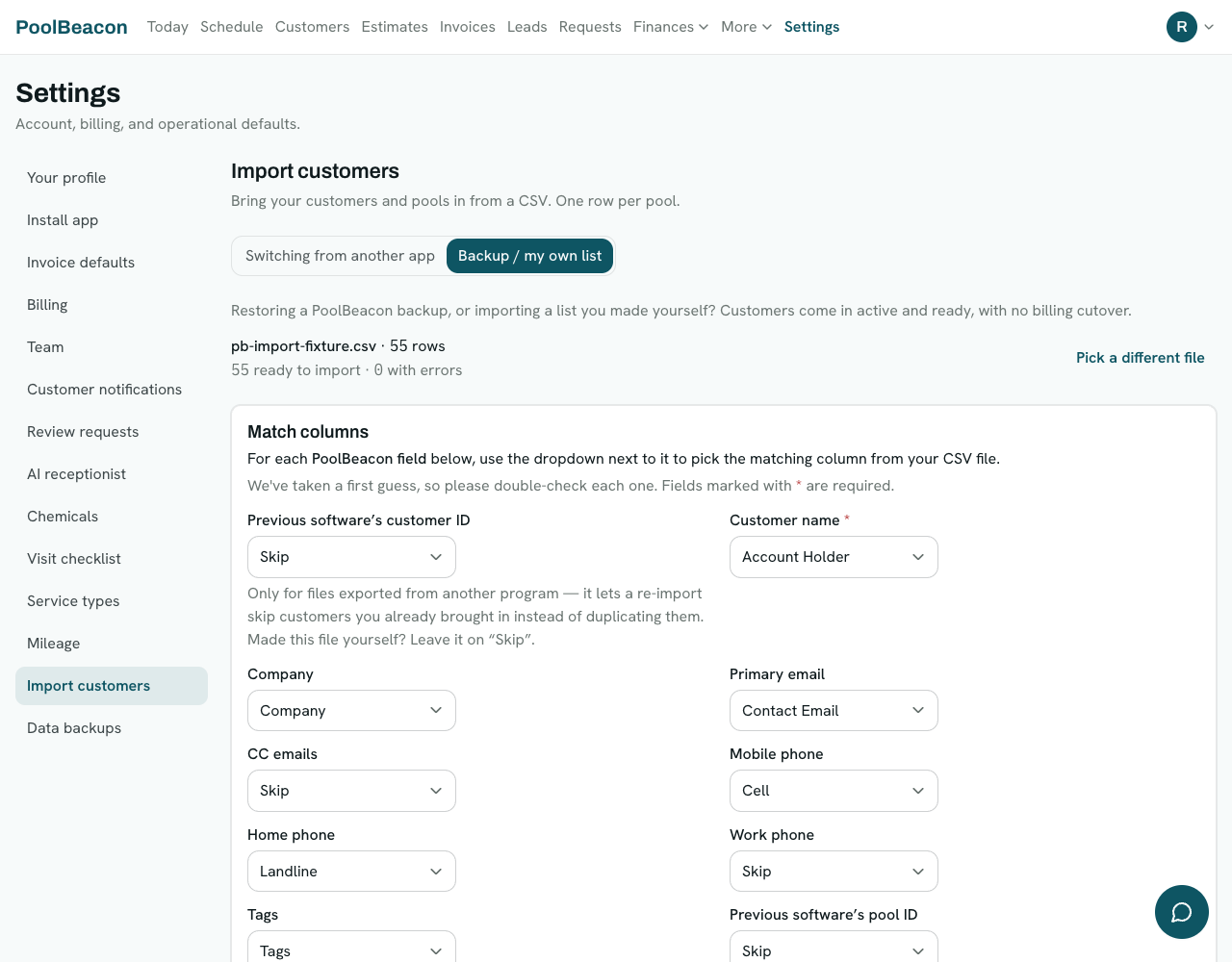
Columns are auto-guessed, then editable. Required fields are marked with an asterisk. - 4
Preview, then import
Before anything saves, you see a preview of exactly what will be created: each customer, their pool address, cadence, and rate. Rows with a problem (a missing name or address) are skipped, not blocked, and listed with the reason so you can fix them. Values PoolBeacon cannot read, a rate written as "$150/mo" or a pool type your old app words differently, are listed separately with an example and the row they came from, so nothing is dropped quietly. When it looks right, click Import. Nothing is written until you do.
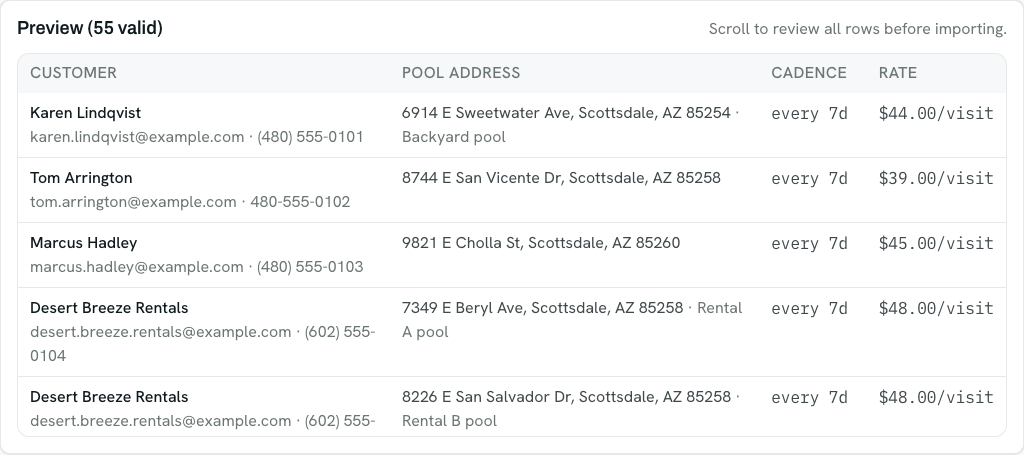
A full preview before anything saves. Invalid rows are skipped and listed, not silently dropped.
Switching from another app
Moving recurring billing over without a double charge
If you chose “Switching from another app,” your customers come in dormant. PoolBeacon will not bill anyone until you cut them over one at a time, and it never asks you to cancel a customer’s old billing until yours is proven set up. So there is no gap where nobody is billing them, and no window where both apps could. Here is the order for a recurring autopay customer.
- Set their billing details. Enter the rate and how often you bill. If you do not know their next bill date, enter what they were last billed on the old app and PoolBeacon sets the first charge one full cycle later, so you never charge for a period they already paid. It warns you if a date would overlap one.
- Send the authorization, and leave their old billing on. The customer gets an email to sign a short authorization and re-enter their card (for security, saved cards cannot move between apps). Keep their old billing running while you wait. Nothing is charged yet, and they are never left un-billed, however long they take to sign.
- We tell you the moment they are ready. As soon as they sign and save a card, you get an email, and they jump to the top of your cutover list with a highlighted flag, so you never have to hunt for who is waiting on you.
- Turn off the old auto-debit, then confirm it here. Now that they are set up on your side, cancel their billing on the old app and check the confirmation. That is the go-live: PoolBeacon starts billing them on their next cycle. Canceling is yours to do, we have no access to your old provider, and we will not charge anyone until you confirm, so the two systems never run at once.
Invoice, per-visit, and manual customers are simpler: there is nothing for the customer to sign, so you just confirm you have turned off their old billing and activate them. Per-visit and manual customers do not even need that, because nothing recurring is running for them to cancel.
What if I leave someone on the list?
Nobody is charged twice, which is what the list is protecting against. But nobody is charged by PoolBeacon either, and your old app carries on billing them at its rate. Their visits still get scheduled and worked as normal, so a customer left on the list is one you are servicing without invoicing here. Anyone still on it is revenue you have not moved across yet.
What if I do it in the wrong order?
The costly one is canceling the old auto-debit before your customer has signed and entered a card. PoolBeacon will not start billing them until a card is on file, so until they finish, neither app is charging them. Send the authorization first, wait for their row to flag as ready, then turn the old one off. Doing it the other way round cannot double-charge anyone, it just means you are not being paid in the meantime.
To see where any one customer has got to, look at their row: it says whose move it is and what the next step is, in a sentence. Rows waiting on you are marked, and the ones who have signed and saved a card sort to the top, because those are the only ones where you are the last thing standing between the work and getting paid for it.
Good to know
A few things worth knowing
One row per pool
Each row is one pool, with the customer repeated on each of their rows. A customer with two pools is two rows sharing the same name and contact info, and PoolBeacon combines them into one customer with two pools.
Five columns are required, not just a name
You need the customer name plus the pool's street address, city, state, and ZIP. A file with only names will preview as zero valid rows. Everything beyond those five is optional.
Re-importing is safe
Nothing is created until you hit Import, and you can undo it. Import the same file twice and PoolBeacon matches the customers you already have (by your old app's ID, or by name and email) and matches pools by your old app's pool ID, or by address, ZIP, and nickname together, so you do not end up with duplicates. That matching is also why you should undo an import you are unhappy with rather than just re-running the file: a second run skips the rows it already brought in.
One odd cell will not stop the whole file
A gallons column that reads 0, a note longer than the field holds, a rate written as text: none of these stop the import. They come in blank or shortened, and the preview step lists each one with an example and the row it came from, so you can decide whether to fix your file first or fill those few in later.
Undo has limits, and it says so
The undo covers the customers and pools that import created, never ones you already had. It stays available while you are on the import screen, including after a page refresh in the same session. If you have since scheduled visits or created invoices for those customers, PoolBeacon refuses to roll back rather than deleting that work, and tells you how much would be lost so you can decide.
Questions about importing
- What file format do I need?
- A CSV, with one row per pool and the customer repeated on each of their rows. You can also drop in several CSVs at once, or a ZIP (like a PoolBeacon backup), and they are matched up automatically.
- Which columns are required?
- Five: the customer name, and the pool's street address, city, state, and ZIP. Every other column (emails, phones, pool specs, rate, gate code, notes) is optional.
- Will importing twice create duplicates?
- No. PoolBeacon matches existing customers by your previous software's ID, or by name and email, and matches pools by your previous software's pool ID, or by address, ZIP, and nickname together, and skips the ones you already have. Two genuinely separate pools at one address stay separate as long as they have different nicknames.
- What happens to rows with errors?
- They are skipped, not blocked. The preview shows how many rows are valid and lists the skipped ones with the reason, and you import the valid rows.
- Can I undo an import?
- Yes. Undo deletes the customers and pools that import created and leaves any you already had alone. It stays on the import screen while you are working, and survives a page refresh in the same session. If you have already scheduled visits or created invoices against those customers, PoolBeacon blocks the rollback and tells you what would be lost, so you can move that work first instead of losing it.
- My export splits first name and last name into two columns.
- Most do. Map the first-name column to Customer name and the last-name column to Customer last name, and PoolBeacon joins them. If your file has a single display-name column as well, map that one instead and leave the last name on Skip.
- I am coming from Skimmer, Jobber, Housecall Pro, or Pooltrackr.
- Export a CSV from your old app and drop it in; PoolBeacon auto-maps most of those exports' columns. If the shape is unfamiliar, email it to hello@poolbeacon.com and the team will handle the import for you.
Bring your book with you
Switching is a CSV and a few minutes, and the team will load it for you if you get stuck. Every feature is on every plan, starting at $19.99/mo. Start the 3-month free trial and import your list.