How to install PoolBeacon on your phone
PoolBeacon adds to your home screen in a couple of taps, with nothing to download from an app store. It opens full screen like an app, keeps working in dead-zone backyards once your route is loaded, and updates itself the next time you have signal.
Add it once: no store, full screen, works offline.
Step by step
Add it to the home screen
- 1
Open poolbeacon.com/install (and share the link)
The whole guide lives at poolbeacon.com/install, one link you can text to every tech. Open it on the phone you want the app on and it detects the device and highlights the right steps. When you are signed in, the same guide is under Settings, then Install, so a teammate can add it without hunting through their browser menu.
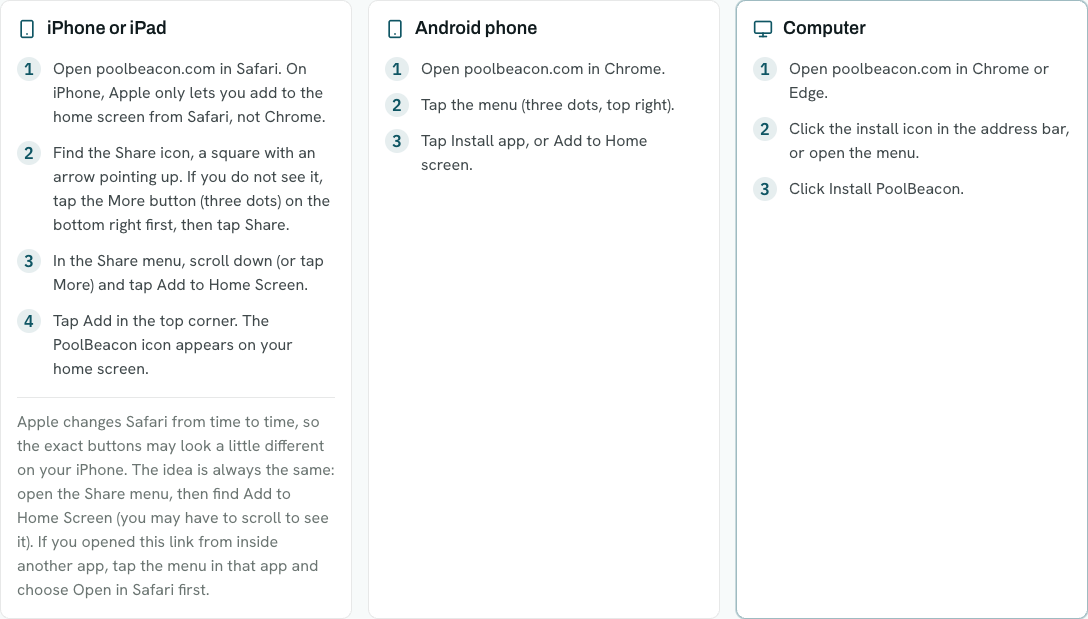
The install guide at poolbeacon.com/install. It shows the exact steps for whichever device opens it. - 2
On an iPhone, add it from Safari
On iPhone and iPad, Apple only lets you add an app to the home screen from Safari, not Chrome. Open poolbeacon.com in Safari, tap the Share icon (the square with an arrow pointing up), scroll down, and tap Add to Home Screen, then Add. If you opened the link inside another app, tap that app's menu and choose Open in Safari first.
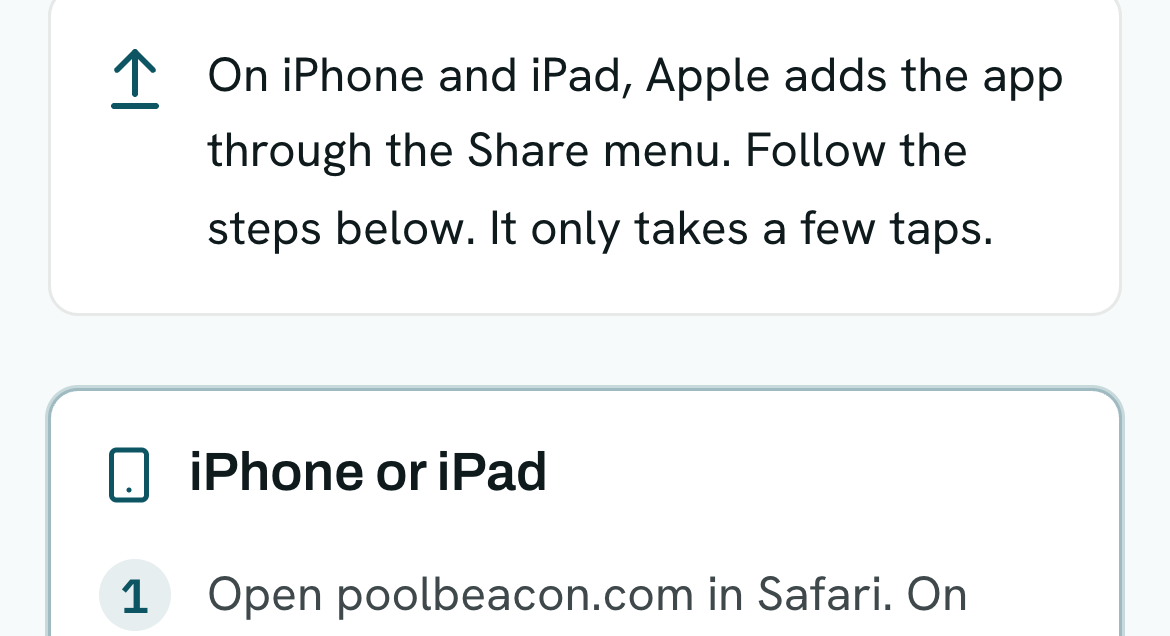
On iPhone the guide points you to the Share menu, because Apple blocks one-tap install in the browser. - 3
On Android or a computer, use the browser button
On Android, open poolbeacon.com in Chrome, tap the menu (three dots), and tap Install app. On a computer, open it in Chrome or Edge and click the install icon in the address bar, then Install PoolBeacon. Where the browser supports one-tap install, PoolBeacon shows an Add to home screen button right on the page, so you do not have to find the menu at all.
- 4
Open the app and sign in
Tap the PoolBeacon icon and it opens full screen, straight to sign-in. A tech signs in with the invite you sent and lands on Today: their stops for the day, with Open visit to log the work and one-tap Directions and Navigate. Owners open into the office view instead, and you can switch between the two from the menu. It is one app, just two views.
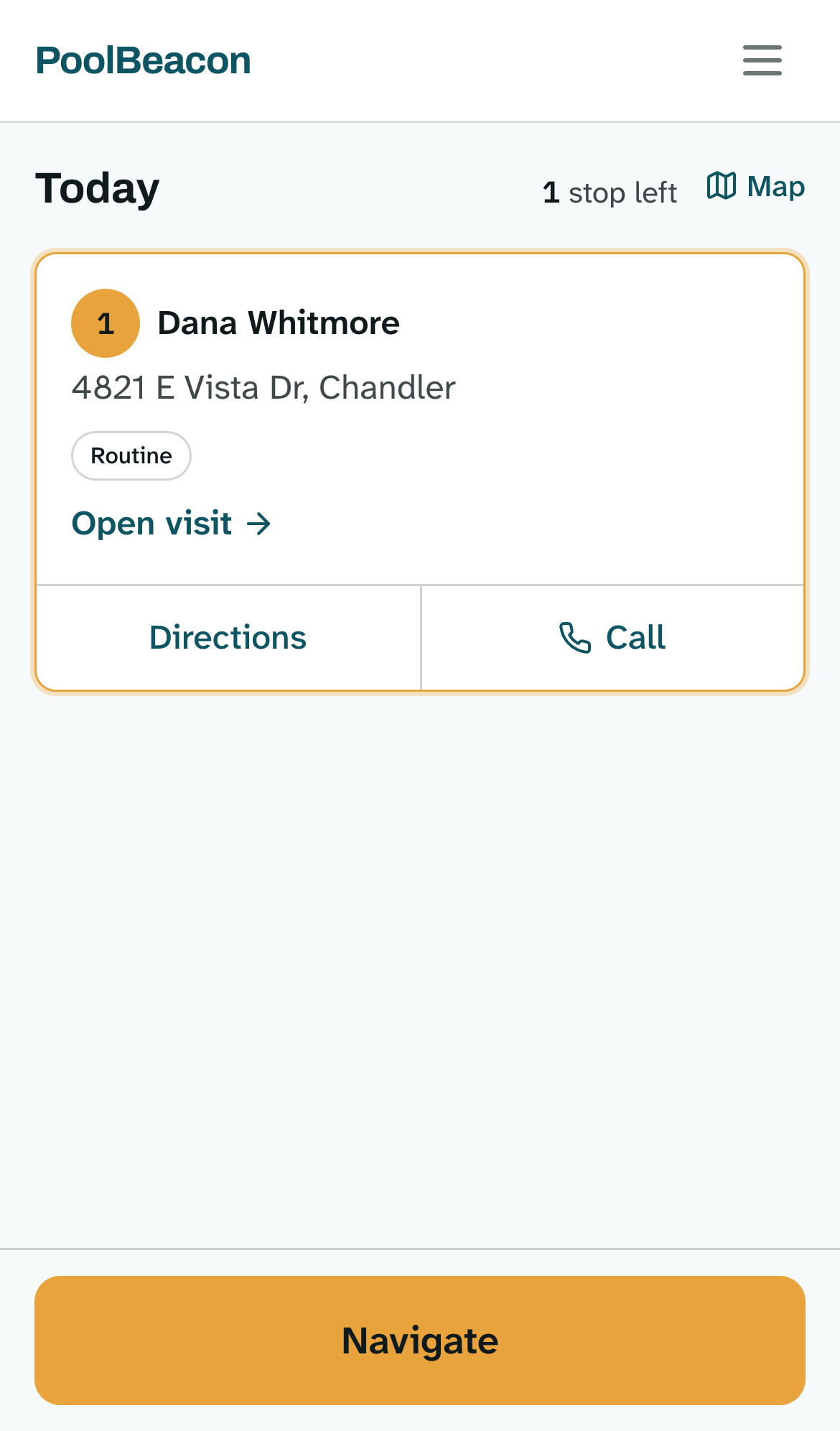
What a tech sees after installing: the field view, Today. Tap a stop to open the visit logger.
Good to know
A few things worth knowing
No app store, nothing to download
Installing just adds a shortcut to the same site you already use, so there is no separate download, no store account, and nothing to approve. It also means it updates itself: the next time you open it with signal, it is already on the latest version.
It keeps working in the backyard
Once you have opened Today and loaded your route for the day, the field view keeps working with no signal, so a dead-zone backyard does not stop you. Your readings, photos, and notes save on the phone and sync the moment signal returns.
One app, two views
The office view (schedule, customers, billing) and the field view (today's route, the visit logger) are the same app on any device, phone included. Techs open into the field view by default; you can switch views anytime from the menu.
Questions about installing
- Do I need to download anything from the App Store or Google Play?
- No. PoolBeacon is a web app you add to your home screen. There is nothing to download from a store, no store account needed, and nothing to approve. Installing is just a shortcut to the site.
- Why does my iPhone only let me install from Safari?
- That is an Apple rule: on iPhone and iPad, Add to Home Screen is only available in Safari, not Chrome or other browsers. Open poolbeacon.com in Safari, then use the Share menu and tap Add to Home Screen.
- Does it work without signal in the backyard?
- Yes, once your route is loaded. Open Today while you have signal and the field view keeps working in dead zones. Your readings and notes save on the phone and sync when signal comes back.
- Will it update itself?
- Yes. Because it is a web app, it updates automatically the next time you open it with signal. There is no manual update step and no version to install.
- How do my techs install it?
- Text them poolbeacon.com/install. The page detects their device and shows the exact steps. They sign in with the invite you sent and land in the field view. See the guide on inviting your team for how to send that invite.
- Can I install it on a computer too?
- Yes. In Chrome or Edge, click the install icon in the address bar (or use the browser menu) and choose Install PoolBeacon. It opens in its own window, the same as on a phone.
Put it in your pocket
Every feature is on every plan, starting at $19.99/mo. Start the 3-month free trial, then add PoolBeacon to your home screen and send the same link to your crew.