How to schedule and complete a visit
This is the everyday loop: schedule a visit in the office view, log the work in the field, and mark it complete. Both views are just the app on any device, phone included. Completing the visit is what sends your customer a report and generates the invoice.
The everyday loop: schedule, log, complete.
Step by step
Schedule it, log it, complete it
- 1
Open the pool (in the office view)
Scheduling lives in the office view. That is just the other view of the app, not a separate computer, so it works right on your phone too. If you are in the field view, open the menu and tap "Office view" first. Then open the customer, open their pool, and find the "Upcoming visits" section on the pool page. (No pool yet? Add the customer and pool first, see the first-customer guide.)
- 2
Pick a date and service type, then Schedule visit
In "Upcoming visits," choose a date (it defaults to today) and a service type (it defaults to Routine maintenance), then click Schedule visit. The date is the only thing you have to set. The nine common service types are built in, so nothing needs to be set up first, and you can add your own later in Settings. To lay down a whole recurring run at once instead of one at a time, use Auto-fill from schedule.

Scheduling on the pool page. Only the date is required; service type defaults to Routine maintenance. - 3
The visit lands on your schedule and the route
The new visit shows on your Schedule board and on the assigned tech's Today route. The tech is inherited from the pool's assigned tech; you can reassign any visit on the Schedule board. Solo operators are the tech, so it just shows up on your own Today list.
- 4
In the field, open the visit and log the work
From Today, tap the stop to open it. Log the chemistry readings by typing the ppm your kit, meter or strip gave you. PoolBeacon records the readings you enter. It does not interpret them. Add any chemicals you dosed, snap photos, tick the checklist, and write a service note for the customer plus an internal note for your team. Opening the stop stamps your arrival, and everything here works offline and syncs when signal returns.
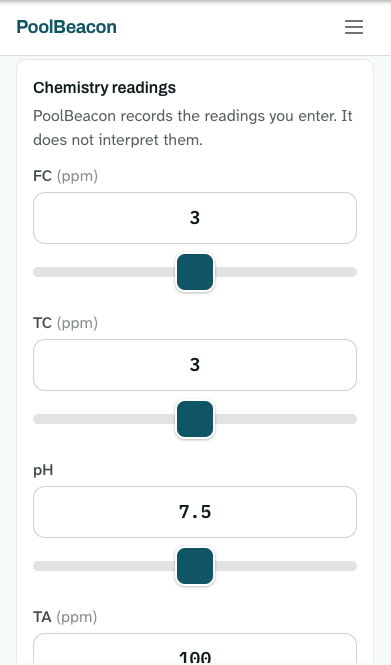
The field logger. Readings go in on sliders, one per test. - 5
Mark the visit complete
When the stop is done, tap Mark visit complete and confirm. That one action saves your notes, sends the customer their visit-report email, and, if the pool has a per-visit rate, generates the invoice (and emails it too if you have turned on auto-send in Settings). The visit then locks so it is not edited by accident, and you can reopen it if you need to. You can also complete a visit from the office view, it is not field-only.
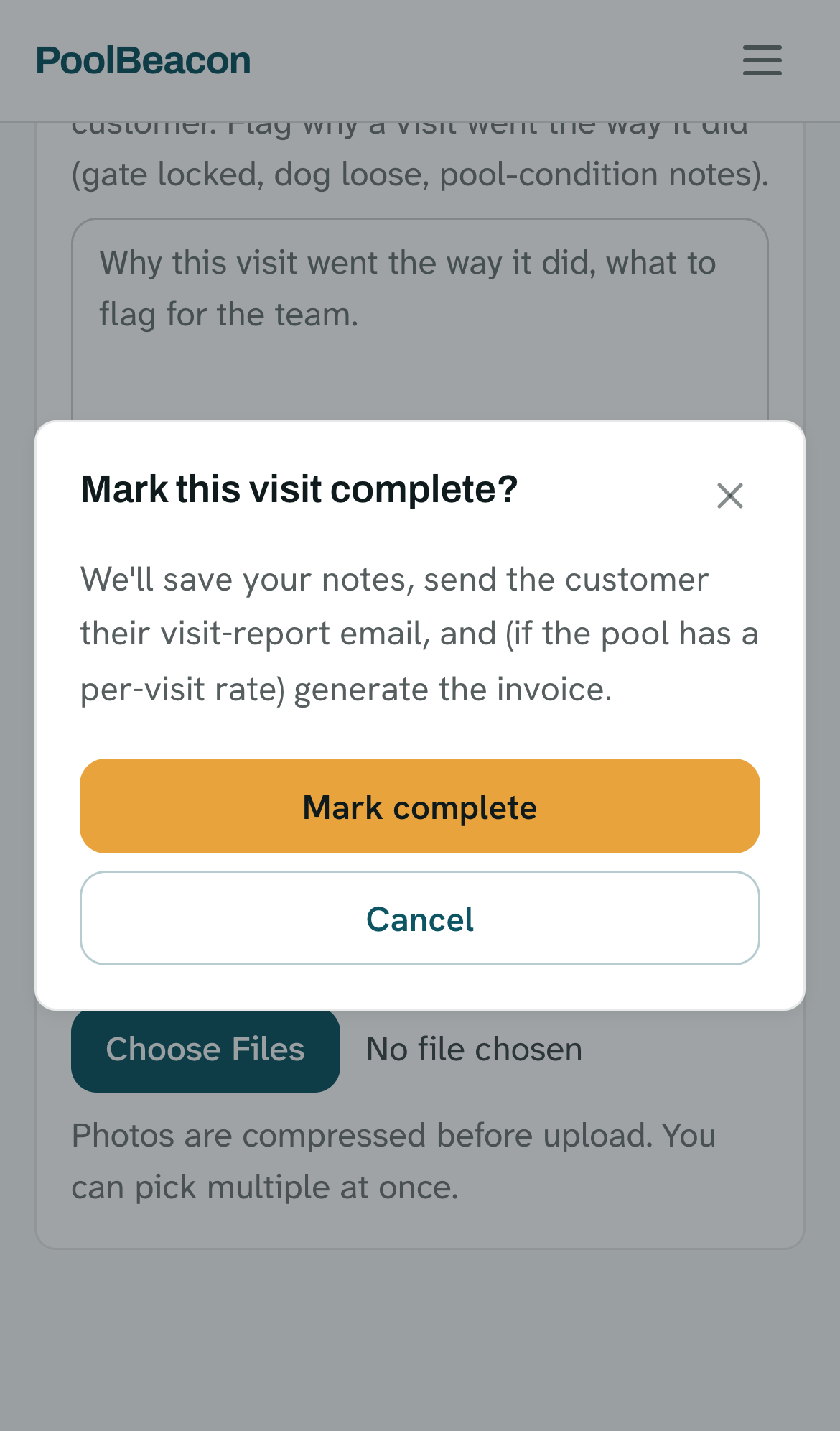
The completion confirm dialog spells out exactly what happens: report email, plus the invoice for a per-visit pool.
Good to know
A few things worth knowing
Only a date is required to schedule
Service type defaults to Routine maintenance and the nine common types are built in, so you never have to configure anything before scheduling. Custom service types are an optional extra in Settings.
Billing and agreements never block a visit
You can schedule and complete a visit whether or not billing is set up or an agreement is signed. If the pool has no per-visit rate, the visit still completes and the customer still gets their report, it just will not create an invoice.
Completing is the moment the customer hears from you
Marking complete is what sends the branded visit-report email and, for per-visit pools, the invoice. That is the product working end to end: the office view schedules it, the field view logs it, and the customer gets a clean report the same day.
Questions about visits
- What is required to schedule a visit?
- Just a date. The service type defaults to Routine maintenance, and the assigned tech is inherited from the pool, so a date is the only thing you set.
- Do I have to create service types before I can schedule?
- No. Nine common service types are built in and always available. Adding your own custom types in Settings is optional.
- What happens when I mark a visit complete?
- Your notes are saved, the customer is sent their visit-report email, and if the pool has a per-visit rate an invoice is generated (and emailed automatically if you have turned on auto-send). The visit then locks, and you can reopen it if needed.
- Can I complete a visit from the office view, or only in the field?
- Either. The field view and the office view both have the same Mark visit complete action, with the same result. Both views work on any device, including your phone.
- Do I need billing set up or an agreement signed before completing?
- No. Neither gates a visit. If there is no per-visit rate, the visit still completes and the report still sends; it simply will not generate an invoice.
- Can I schedule a whole recurring route at once?
- Yes. Use Auto-fill from schedule on the pool to generate a run of visits from the pool's service frequency, instead of adding them one at a time.
Run the whole loop yourself
Every feature is on every plan, starting at $19.99/mo. Start the 3-month free trial and schedule, log, and complete a visit end to end.