How to send an estimate and get it signed
Estimates in PoolBeacon go from a quote to a signed, billable job without leaving the app. Build it, send it, let the customer e-sign it, and convert it to an invoice. This walks through that loop and explains what every status means along the way.
The estimate loop: build, send, sign, invoice.
Step by step
From quote to signed job
- 1
Build the estimate
From Estimates, click New estimate. Pick the customer, set the service address, and add line items (a description, quantity, and price for each). You can also add a note the customer will see, an optional deposit, and an expiration date. It saves as a Draft that only you can see. Estimates are owner and admin only, since they are pricing.
- 2
Send it to the customer
When it is ready, click Send to customer. That emails the customer a link and moves the estimate to Sent. A draft needs a complete service address before it can go out, so if Send is unavailable, set the address first. Need to send it again later? Use Resend.
- 3
The customer reviews and signs
The customer opens the link with no login, sees your business name, the line items, your note, and the total, and either taps Accept estimate or Decline. Accepting asks them to type their name as their signature. Their name, the date, and their IP address are recorded, so you have proof of exactly what they agreed to.
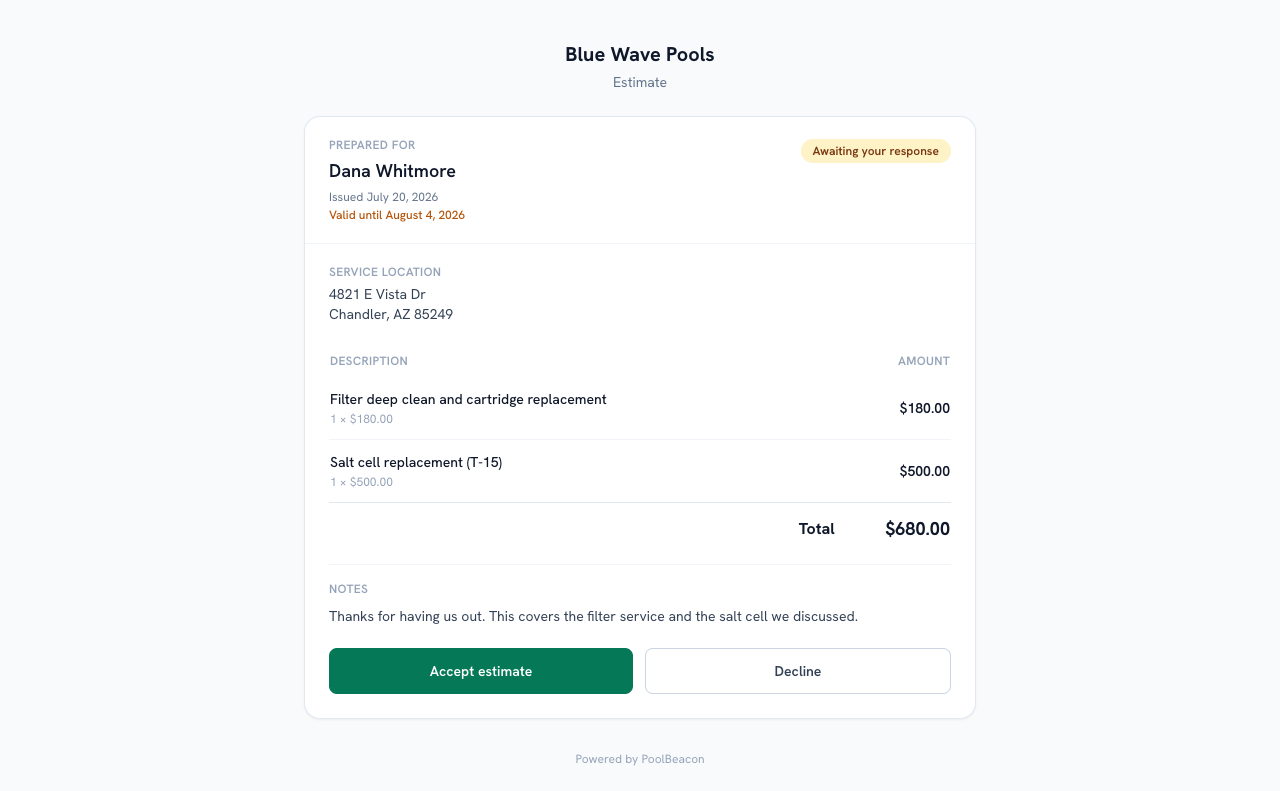
What the customer sees. Accepting types their name as the signature; there is no account to create. - 4
Turn an accepted estimate into an invoice
Open an Accepted estimate and click Convert to invoice. The status becomes Converted and the invoice becomes the record of the job, so you bill and get paid from there. You can also schedule the visit right from the estimate. If you collected a deposit, converting creates the balance invoice for what is left.
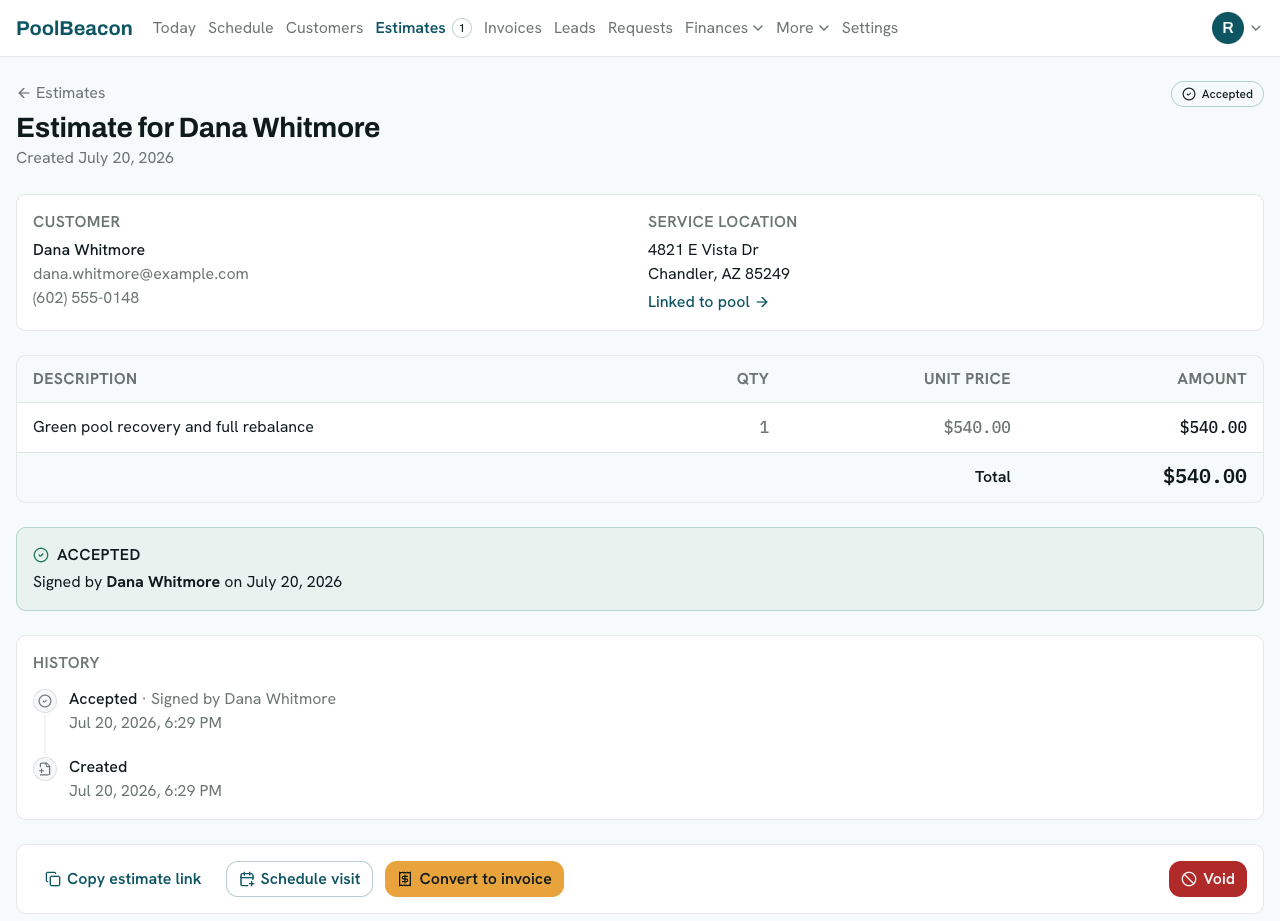
An accepted estimate. The signature is recorded, and Convert to invoice turns it into a billable job.
Reading the board
What every status tab means
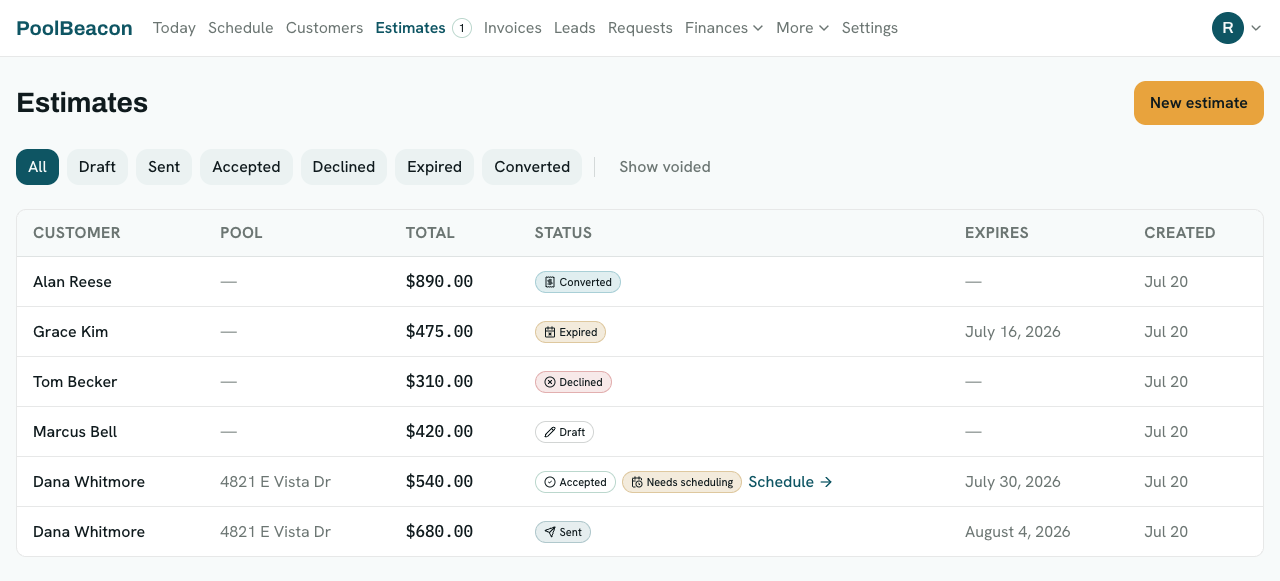
Every estimate sits in one of seven statuses, shown as a labelled badge on each row. The tabs across the top of the Estimates page filter the list to a single status, so you can jump straight to, say, everything that is still Sent and waiting on a customer. Here is the whole board and its filter tabs.

You are still building it. Only you can see a draft; nothing has been sent to the customer yet.
What to do next: Add the line items and a service address, then send it.
You have emailed the customer a link to review and sign. It is waiting on their response and counts down to its expiration date.
What to do next: Wait for the customer, or use Resend to email the link again.
The customer opened the link and signed. Their typed name, the date, and their IP address are recorded as the signature.
What to do next: Convert it to an invoice to bill it, and schedule the visit.
The customer chose Decline, sometimes with a reason they typed in.
What to do next: Follow up if it makes sense, or void it to clear it off your board.
The expiration date passed while the estimate was still Sent, so it lapsed on its own. This happens automatically overnight, in your time zone.
What to do next: Renew it to set a new expiration and reactivate the link, then resend.
You turned the accepted estimate into an invoice. The invoice is now the record of the job, so the estimate is locked.
What to do next: Nothing more to do here. Handle the money on the invoice.
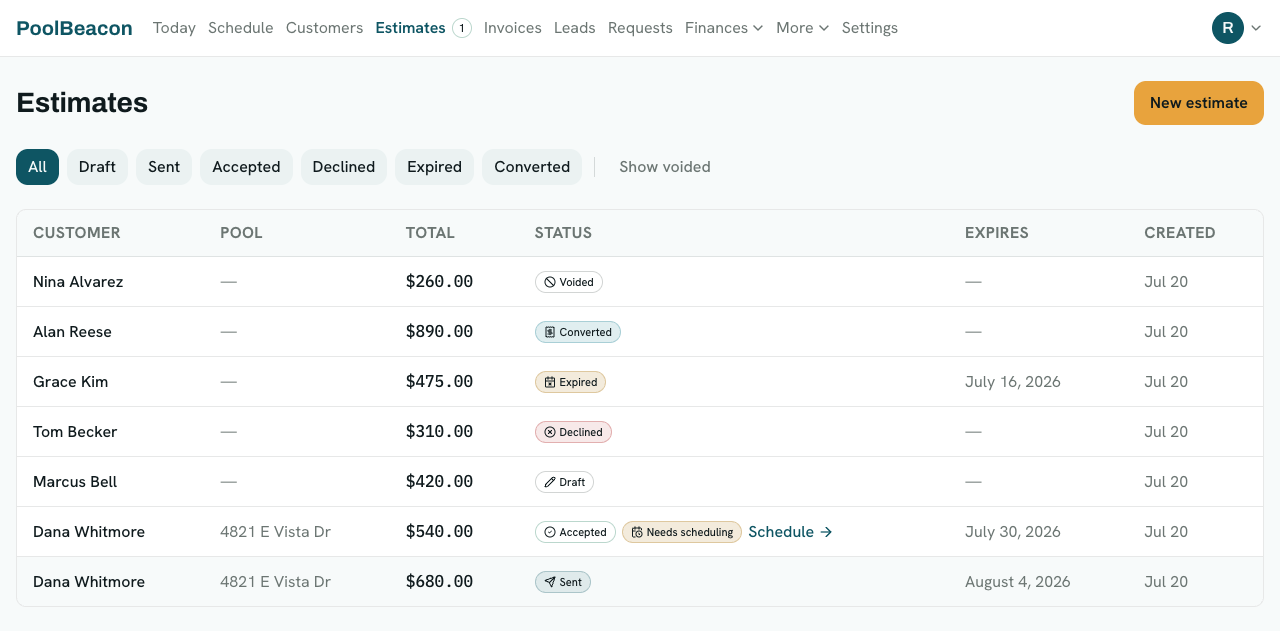
You withdrew the estimate. It keeps its history for your records but drops off your active list. Voided estimates are hidden by default.
What to do next: Click Show voided to see them. Reopen as draft brings one back if you voided it by mistake.
Showing voided estimates
Voided estimates are hidden by default so the board stays focused on live work. Click Show voided (next to the tabs) to bring them back into view. From a voided estimate you can Reopen as draft if you withdrew it by mistake.
Good to know
A few things worth knowing
The signature is captured for your records
Accepting records the customer's typed name, the date, and their IP address, and stores a snapshot of exactly what they agreed to. That is the attribution and record that electronic-signature laws like ESIGN and UETA look for, and it is built in, so you do not need a separate service like DocuSign.
An expiration date protects your pricing
Set an expiration when you send, and the estimate lapses to Expired on its own once the date passes. Prices and parts costs move, so this keeps a months-old quote from being accepted at a stale price. If you still want to honor it, Renew sets a new date and reactivates the link.
Converting is the finish line
Once you convert an estimate, the invoice is the canonical record of the job, and the estimate locks (you cannot void a converted estimate). From that point you manage the money on the invoice. Void is for estimates you are withdrawing before that point.
Questions about estimates
- What does each estimate status mean?
- Draft: still being built, only you see it. Sent: emailed to the customer, awaiting their response. Accepted: the customer signed. Declined: the customer said no. Expired: the expiration date passed while still sent. Converted: turned into an invoice, now the record of the job. Voided: withdrawn by you, kept for the audit trail and hidden by default.
- How does a customer sign an estimate?
- They open the link you emailed, with no login or account to create. They see your business name, the line items, your note, and the total, then tap Accept estimate and type their name as their signature. That records their name, the date, and their IP address on the estimate.
- Is the e-signature valid?
- It captures what electronic-signature laws like ESIGN and UETA look for: the customer's intent to sign, their typed-name signature, attribution (name, date, and IP), and a stored snapshot of what they agreed to. It is built into PoolBeacon, so there is no separate DocuSign to set up.
- What happens when an estimate expires?
- If the expiration date passes while an estimate is still Sent, it moves to Expired automatically overnight, in your time zone, and the customer's link stops accepting. To revive it, open the estimate and Renew it, which sets a new expiration and reactivates the link, then resend.
- Why can't I void a converted estimate?
- Once you convert an estimate, its invoice becomes the canonical record of the job, so the estimate is locked to protect that record. Manage the job from the invoice instead. Void is available on sent, accepted, declined, and expired estimates, before they become invoices.
- Where did my voided estimates go?
- Voided estimates are hidden by default so your board stays focused on live work. Click Show voided on the Estimates page to see them. If you voided one by mistake, open it and Reopen as draft to bring it back.
- Can I collect a deposit on an estimate?
- Yes. Add an optional deposit when you build the estimate. The customer can pay it to confirm, and when you convert the accepted estimate, PoolBeacon creates the balance invoice for the remainder.
Quote it, sign it, bill it
Estimates, e-sign, and invoicing are all included, no separate DocuSign to set up. Every feature is on every plan, starting at $19.99/mo. Start the 3-month free trial and send your first estimate.