How to set up billing for a pool
Billing is set per pool, and you pick how each one is billed. This walks the three ways to bill, when invoices actually generate, and how to get paid while keeping 100% of what your customers pay you.
Three ways to bill a pool:
Step by step
Choose a billing mode, then set your defaults
- 1
Open the pool and find Billing
Billing is set per pool, not per customer, so a customer with two pools can bill each one differently. Open the pool and scroll to the Billing section (owner and admin only). Billing is optional to save a pool, it just defaults to per-visit until you change it.
- 2
Pick how this pool is billed: per visit
The default is Per visit: you set a per-visit rate, and an invoice is created automatically each time a tech marks a visit complete. This is the common choice for standard weekly service that is priced per stop.
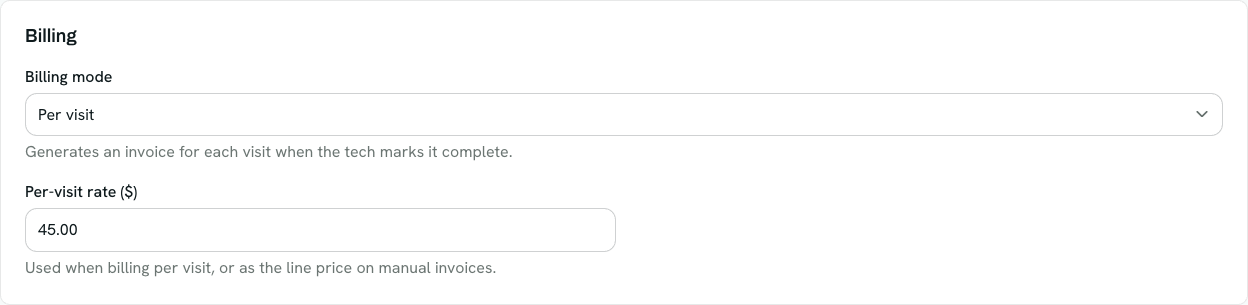
Per visit: set a rate, and an invoice is created when a tech completes each visit. - 3
Or a recurring flat-rate plan
Choose Recurring plan (flat rate) to bill one flat amount per period regardless of how many visits happened. Pick the billing frequency (weekly through yearly), the rate per period, and the next bill date. A daily process generates the plan invoice on that date and repeats on your chosen frequency. Under "How it's collected," leave it as an emailed pay-link, or switch to Autopay (Autopay charges automatically once the customer signs an authorization and saves a card).
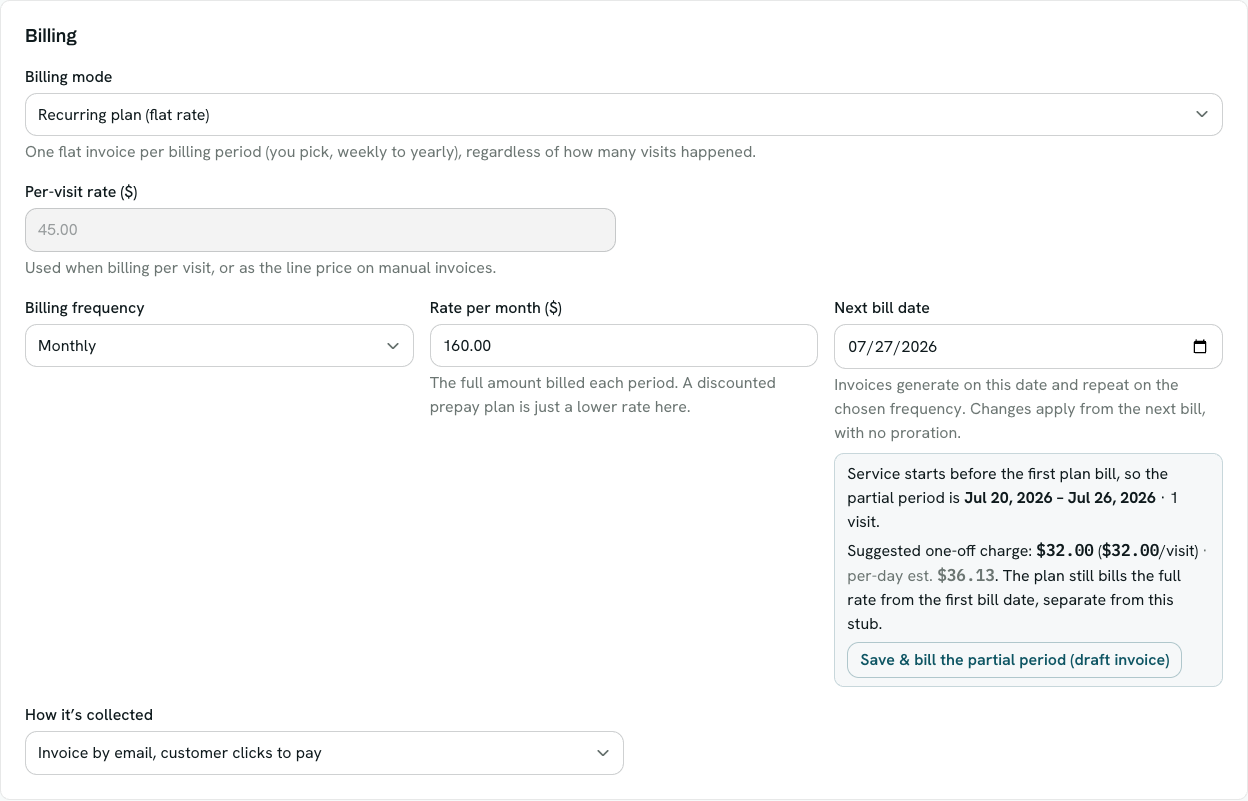
Recurring plan: pick a frequency, a rate per period, and the next bill date. It repeats on its own. - 4
Or bill manually
Choose Manual (operator decides) for anything you would rather bill by hand. Nothing generates automatically; you create invoices yourself from the customer page whenever you like. The per-visit rate you entered still works as the default line price on those manual invoices.
- 5
Set your account-wide invoice defaults
In Settings, open Invoice defaults. These apply to every invoice. The one worth setting first is Auto-send: it is off by default, so auto-generated invoices are created as drafts for you to review before sending. Turn it on once you trust the flow and they will email the moment they are generated. You can also set payment terms (which enable overdue reminders and late fees), a tax rate and which line categories it applies to, and how chemicals are billed.
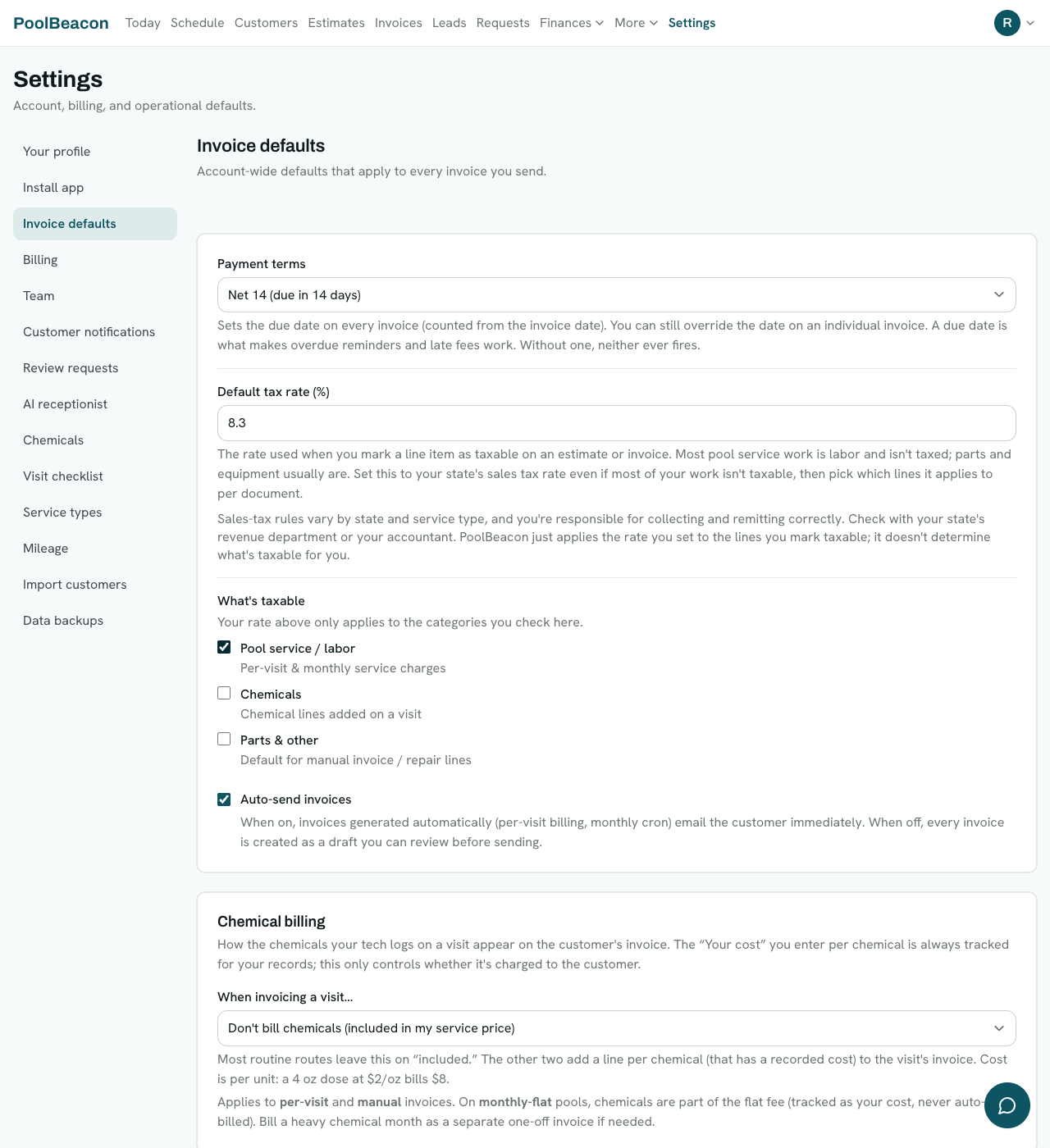
Invoice defaults apply to every invoice. Auto-send is off by default, so your first invoices are drafts you review. - 6
Connect Stripe to get paid
To let customers pay by card, connect your own Stripe account under Settings, Billing (owner only). You are the merchant of record, the money goes straight to you, and PoolBeacon takes 0% of customer payments. Sending an invoice emails the customer a pay-link. You can also mark an invoice paid by hand for cash or check. You can create and send invoices before connecting Stripe; customers just cannot pay by card until you do.
Good to know
A few things worth knowing
Billing never blocks a visit
A pool with no rate still gets serviced and the customer still gets their visit report. It simply will not create an invoice, and the visit shows up on your Invoices page as an unbilled visit you can bill by hand.
Auto-send is off until you turn it on
By default, auto-generated invoices land as drafts so you can review them first. That is deliberate, it keeps a wrong rate from emailing a customer before you have looked. Flip on Auto-send in Invoice defaults when you are ready.
You keep 100% of what customers pay
Customer payments run through your own connected Stripe account with a 0% platform fee. PoolBeacon charges you a flat monthly subscription for the software, and takes nothing from the payments your customers make to you.
Questions about billing
- Is billing set per customer or per pool?
- Per pool. Each pool has its own billing mode and rate, so one customer with two pools can be billed per-visit on one and on a recurring plan on the other.
- When does a per-visit invoice get created?
- When a tech marks the visit complete, as long as the pool has a per-visit rate. No rate means no invoice, and the visit is flagged as unbilled so you can bill it by hand.
- When does a recurring plan bill?
- On the pool's next bill date, and then it repeats on the frequency you chose (weekly through yearly). A daily process generates the invoice on the due date, so you do not have to remember to send it.
- Do I have to send every invoice by hand?
- No. Turn on Auto-send in Invoice defaults and auto-generated invoices email the customer immediately. Leave it off (the default) and each one is created as a draft you can review and send when ready.
- Do I need Stripe connected to send invoices?
- No. You can create and send invoices without Stripe. Connecting Stripe (Settings, Billing) is what lets customers pay by card via the pay-link. PoolBeacon takes 0% of those payments.
- Can I charge a plan automatically?
- Yes. On a recurring plan, set How it's collected to Autopay. The customer signs an authorization and saves a card, and then the plan charges automatically each period. Changing the rate or frequency re-sends the authorization.
Get set up and get paid
Every feature is on every plan, starting at $19.99/mo, and PoolBeacon takes 0% of your customer payments. Start the 3-month free trial and bill your first pool.