How to invite and manage your team
PoolBeacon is built for a crew, not just a solo. Invite admins and techs by email, choose exactly what each role can see, and keep your seats in view. Everyone works off the same customers, schedule, and history.
Owner
The account creator. Manages the payment method and subscription and changes roles. Exactly one per account.
Admin
Full access except the payment method and canceling. Can change the plan (the owner is emailed).
Tech
Logs visits and sees their route. Cannot edit customers, pricing, or invoices.
Step by step
Invite, assign a role, set access
- 1
Open Settings, then Team
In the office view, go to Settings, then Team. That one page has everything: how many seats you are using, a form to invite teammates, your current members, and (for the owner) the controls for what techs can see. Only owners and admins can open it.

Seats in use counts active members plus pending invites. Every plan includes every feature; plans differ only by seat count. - 2
Invite a teammate by email and pick their role
Enter their email, choose Admin or Tech, and click Send invitation. Only the owner can invite an admin; admins invite techs. The link is valid for 7 days, and they set their own password when they accept. An admin can do everything except manage the payment method or cancel the subscription. A tech can log visits and see their route, but cannot edit customers, pricing, or invoices. There is no second owner to invite: ownership is the account itself, not an invite.

Invite by email and choose the role. The invite link is good for 7 days. - 3
See your members and pending invites
Active members show with a role badge (Owner, Admin, or Tech). Pending invitations show below with a status you can resend or revoke (only the owner resends an admin invite). Changing someone's role is the owner's call. Owners and admins can remove a tech, and only the owner can remove another admin.
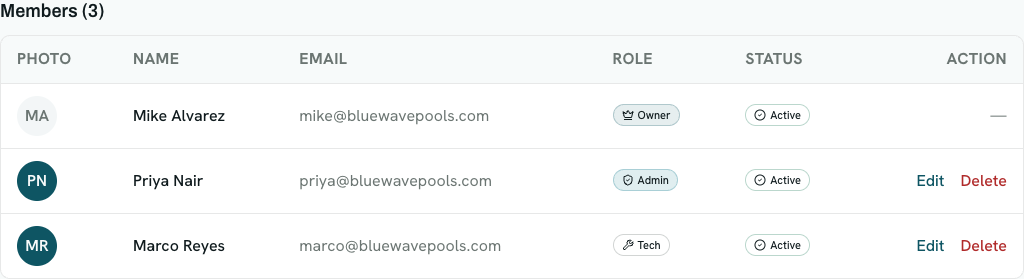
Each member shows their role. Status is an icon and a label, so it reads at a glance. - 4
Set what techs can see (owner only)
Under Tech permissions, the owner sets account-wide controls: hide customer phone and email from techs, let techs edit their own profile, let techs set visit prices, and let techs edit their own time clock. All start off except the time-clock one, which starts on. Every change is recorded either way.
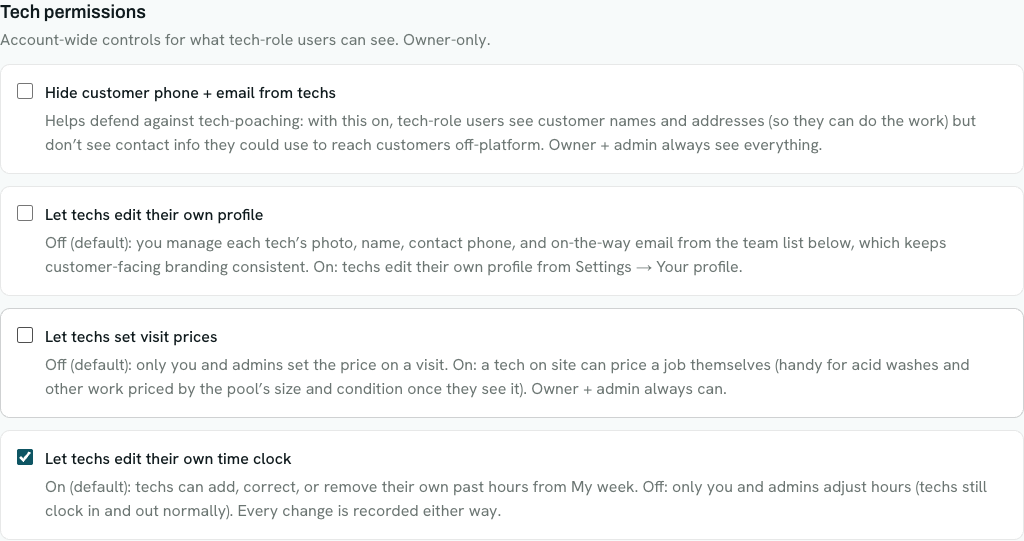
Owner-only toggles for what techs can see and do. The first three are off by default; the time clock is on.
Good to know
A few things worth knowing
You pay for seats, not features
Every plan includes every feature. Plans differ only by how many seats they cover, and a seat is an active member or a pending invite. When you reach your seat limit, new invitations pause until you upgrade, and the Team page shows how many seats you have left.
Removing someone keeps your records
When you remove a teammate, PoolBeacon fully deletes them only if they were never assigned any work. If they have history (visits, photos), it archives them instead, so those records stay attached and their future visits are cleared. Either way a snapshot is saved under Team, then Offboarding records, which is useful for a wage or hours dispute.
Admins run the day; the owner holds the keys
Admins handle everything day to day and can even change the plan (you get an email when they do). Only the owner manages the payment method, cancels the subscription, and changes anyone's role. There is exactly one owner, the person who created the account.
Questions about your team
- What is the difference between an admin and a tech?
- An admin has full access except managing the payment method and canceling the subscription; they can even change the plan, and the owner is emailed when they do. A tech can log visits and see their route, but cannot edit customers, pricing, or invoices.
- Can I have more than one owner?
- No. There is exactly one owner, the person who created the account. You cannot invite or promote a second owner. A separate ownership-transfer flow is planned for handing the account off later.
- How long is an invite link good for?
- Seven days. If it expires before your teammate accepts, resend it from the Team page (the owner resends admin invites). They set their own password when they accept, so you never handle their password.
- Do teammates count against my plan?
- Yes. Seats in use is your active members plus any pending invites. Every plan includes every feature and differs only by seat count, so at your limit new invites pause until you upgrade to a larger plan.
- Can I stop techs from seeing customer phone numbers and emails?
- Yes. Under Tech permissions (owner only), turn on "Hide customer phone and email from techs." Techs still see names and addresses so they can do the work; owners and admins always see everything.
- What happens to a tech's visits if I remove them?
- They are preserved. Anyone with history is archived rather than deleted, so their past visits and photos stay attached, and their future assignments are cleared. A snapshot of what they were assigned is saved to Offboarding records.
Bring your crew on
Every feature is on every plan, starting at $19.99/mo. Start the 3-month free trial, invite your team, and send them the install guide so they are on their route the same day.